📌 Who This Article Is For
- Beginners who want to learn E2E testing with Playwright
- QA engineers who want to automate a full flow from login to order completion
- Developers considering switching from Selenium to Playwright
- Anyone who wants to implement E2E tests using Python
✅ What You’ll Learn
- The basics of Playwright and how it differs from Selenium
- The concept of E2E testing and how it’s used in real projects
- How to set up Playwright with Python
- How to automate all 10 test cases from login to order completion
👨💻 About the Author
Working as a QA engineer with hands-on experience using Playwright and Selenium for automated testing. The script in this article is published on GitHub and has been fully verified to work in a real environment.
E2E testing might sound complicated or hard to set up — but with Playwright, you can go from installation to running your first test in just a few minutes.
In this beginner-friendly guide, we’ll use SauceDemo — a popular demo e-commerce site built for test automation practice — as our target, and walk through automating the full user flow from login → add to cart → checkout → order complete → logout using Playwright and Python. We’ll cover all 10 test cases including negative tests.
What is Playwright?
Playwright is a browser automation library developed by Microsoft. It supports three browser engines — Chromium, Firefox, and WebKit — and works with multiple languages including Python, JavaScript, TypeScript, Java, and C#.
Like Selenium, it controls a real browser to run tests — but the setup is dramatically simpler, and it comes with built-in features like smart waiting, video recording, and slow-motion mode right out of the box.
| Feature | Selenium | Playwright |
|---|---|---|
| Setup | Requires separate ChromeDriver | One command: playwright install |
| Waiting | Requires WebDriverWait |
Simple wait_for_url |
| Speed | Average | Fast |
| Video recording | Not built-in | ✅ Built-in |
| slow_mo option | Not built-in | ✅ Built-in |
What is E2E Testing?
E2E stands for End-to-End testing. It means automating the full sequence of actions a real user would take — like logging in, selecting a product, and completing a purchase. Unlike unit or integration tests, E2E tests control an actual browser to simulate real user behavior.
- Unit Test: Verifies that individual functions or methods work correctly
- Integration Test: Verifies that multiple modules work together correctly
- E2E Test: Verifies the full user flow through a real browser ← This article
E2E tests are especially powerful as a final check before release, or as regression tests that automatically verify core flows haven’t broken after every deployment.
About the Test Target: SauceDemo
SauceDemo is a demo e-commerce site provided by Sauce Labs, designed specifically for practicing test automation. It includes all the core features of a real e-commerce site — login, product list, cart, and checkout — making it the perfect sandbox for E2E testing.
| Username | Password | Behavior |
|---|---|---|
standard_user |
secret_sauce |
Normal user (used in main flow) |
locked_out_user |
secret_sauce |
Cannot login (for negative testing) |
problem_user |
secret_sauce |
Has UI bugs |
performance_glitch_user |
secret_sauce |
Intentionally slow response |
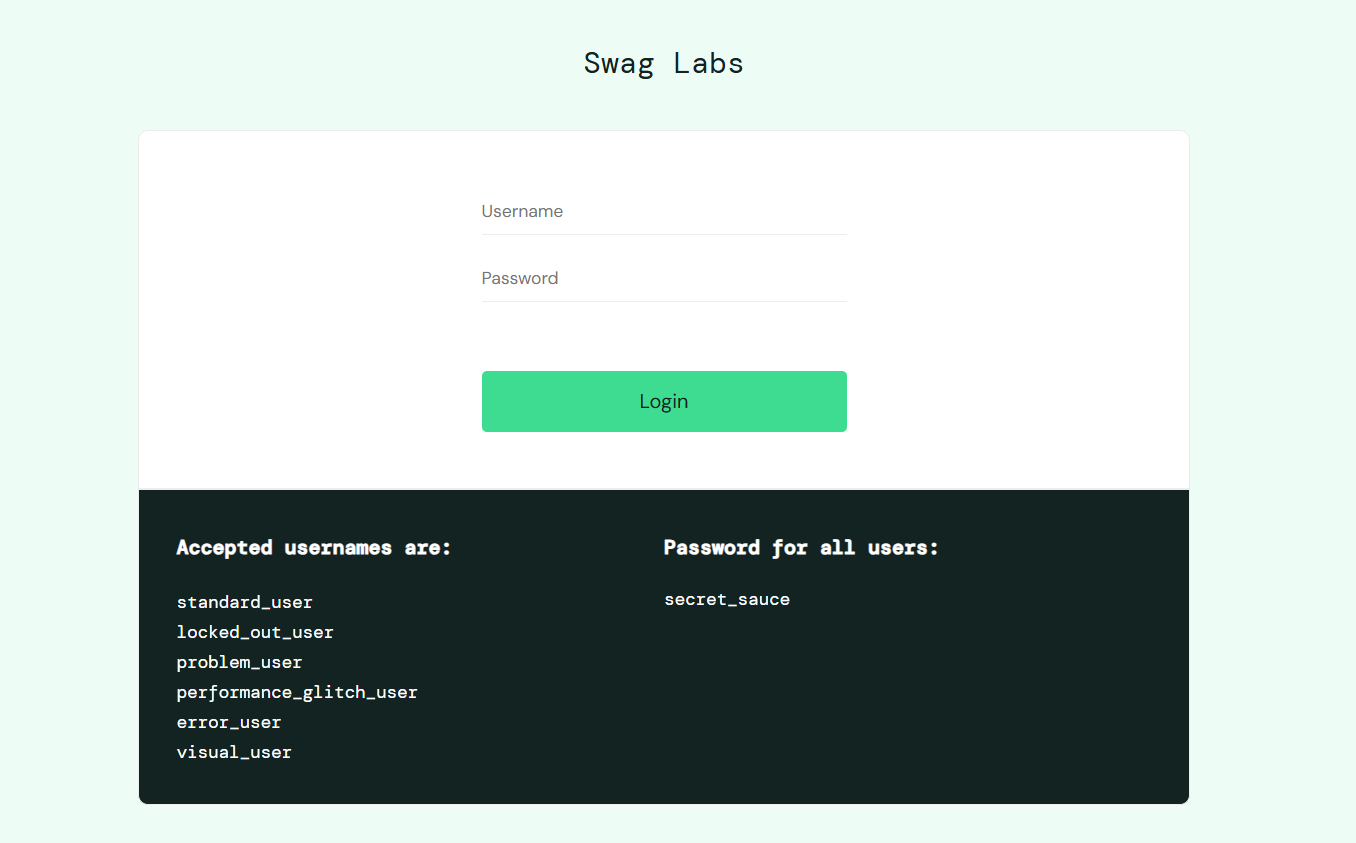
▲ SauceDemo login page — test usernames and the shared password are shown at the bottom
Setup (Python & Playwright)
Installation
Setting up Playwright takes just two commands. No manual ChromeDriver management required.
pip install playwright
playwright install chromium
Folder Structure
This project uses a simple single-file structure. The screenshots folder is created automatically on first run.
project/
├── test_saucedemo.py       # Main test script
└── screenshots/            # Auto-created on first run
    ├── ss_01_login_input.png
    ├── ss_02_after_login.png
    ├── ss_03_locked_user_error.png
    └── ...
💡 Tip: The screenshots/ folder is automatically created by os.makedirs() when the script runs. You don’t need to create it manually.
Code Walkthrough
Let’s walk through the key parts of the code line by line. The goal is to make sure you understand not just what the code does, but why it’s written that way.
① Typing into a Form: fill()
page.fill("#user-name", "standard_user")
page.fill("#password", "secret_sauce")
fill() is Playwright’s method for typing text into an input field. #user-name is the CSS selector for the username input — it refers to the HTML element with id="user-name". It’s equivalent to Selenium’s send_keys(), but it automatically clears the field before typing, so you don’t need a separate clear step.
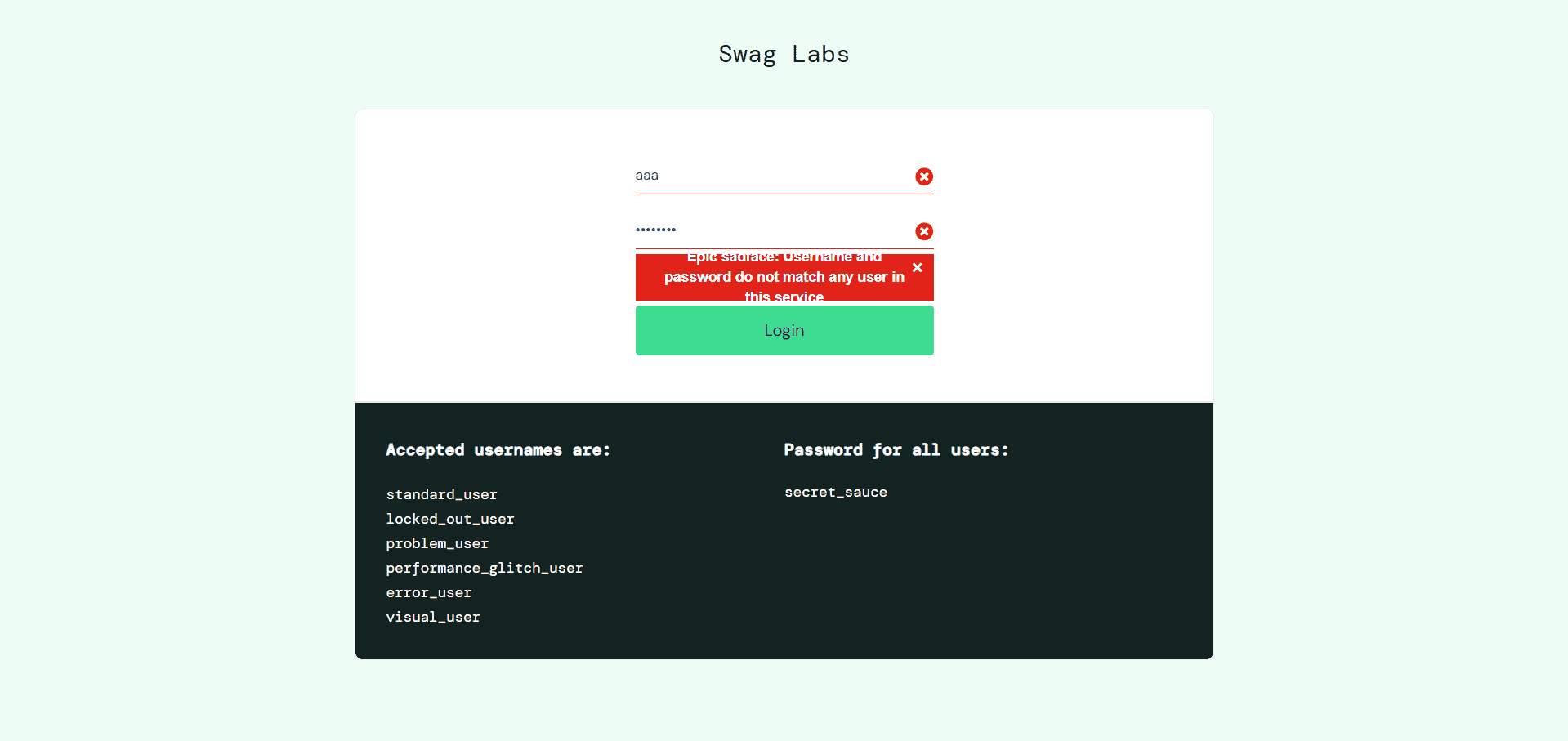
▲ Error message displayed when wrong credentials are entered (TC-03)
② Clicking a Button: click()
page.click("#login-button")click() clicks the element matching the given selector. #login-button is the ID of the login button. Playwright automatically waits until the element is visible and clickable before acting — so unlike Selenium, you don’t need to write explicit wait logic just to click a button.
③ Waiting for Page Navigation: wait_for_url()
page.wait_for_url("**/inventory.html", timeout=8000)wait_for_url() pauses execution until the page URL matches the given pattern. The ** wildcard matches any domain, so you can skip writing the full URL. timeout=8000 means it will throw an error if the page hasn’t navigated within 8 seconds. This replaces Selenium’s verbose WebDriverWait + expected_conditions combo in a single line.
④ Filtering Elements: filter()
item = page.locator(".inventory_item").filter(has_text="Sauce Labs Backpack")
item.locator("button").click()
locator() finds elements matching a selector, and filter(has_text=...) narrows the results to only those containing the specified text. This lets you target a specific product by name and click its button. It’s a very clean pattern for interacting with lists of similar elements.
⑤ Slowing Down Actions: slow_mo
browser = p.chromium.launch(
    headless=False,
    slow_mo=800,   # Add 800ms delay between each action
)
slow_mo is a Playwright-specific option that inserts a delay (in milliseconds) between every action. It’s great for debugging and demos — you can actually see what’s happening on screen. The recommended practice is to use slow_mo=0 (the default) in CI/CD and slow_mo=800 for local verification.
How to Run
Run Command
python test_saucedemo.py💡 Tip: To run in headless mode (no browser window), change headless=False to headless=True in the script. This is recommended for CI/CD environments.
Test Results
When you run the script, results stream to the terminal in real time section by section, with a full summary at the end. Screenshots are automatically saved to the screenshots/ folder.
==================================================
  SauceDemo Automated Test Suite [Playwright]
  Executed: 2025-07-01 10:00:00
==================================================

──────────────────────────────────────────────────
  TC-02: Login Failure - Locked User
──────────────────────────────────────────────────
  Error message: Epic sadface: Sorry, this user has been locked out.
    📸 screenshots/ss_03_locked_user_error.png

──────────────────────────────────────────────────
  TC-09: Order Completion
──────────────────────────────────────────────────
  Completion message: Thank you for your order!
    📸 screenshots/ss_10_order_complete.png

==================================================
  Test Result Summary
==================================================
  ✅ PASS  TC-02: Locked User Login Failure
           → Epic sadface: Sorry, this user has been locked out.
  ✅ PASS  TC-03: Wrong Password Login Failure
           → Epic sadface: Username and password do not match...
  ✅ PASS  TC-01: Login Success
           → //www.saucedemo.com/inventory.html
  ✅ PASS  TC-04: Product List Display (6 items)
           → 6 items displayed
  ✅ PASS  TC-05: Add 2 Items to Cart
           → Badge=2
  ✅ PASS  TC-06: Cart Contents Verification
           → Cart=2 / Added=2
  ✅ PASS  TC-07: Checkout Information Input
           → //www.saucedemo.com/checkout-step-two.html
  ✅ PASS  TC-08: Order Summary Verification
           → 2 items / Total: $19.42
  ✅ PASS  TC-09: Order Completion
           → Thank you for your order!
  ✅ PASS  TC-10: Logout
           → Redirected to login page
──────────────────────────────────────────────────
  Total: 10   ✅ 10 Passed   ❌ 0 Failed
  Result: ✅ All Tests PASSED 🎉
==================================================
If all 10 cases show PASS, you’re good to go! You should also find 11 screenshots automatically saved in the screenshots/ folder.
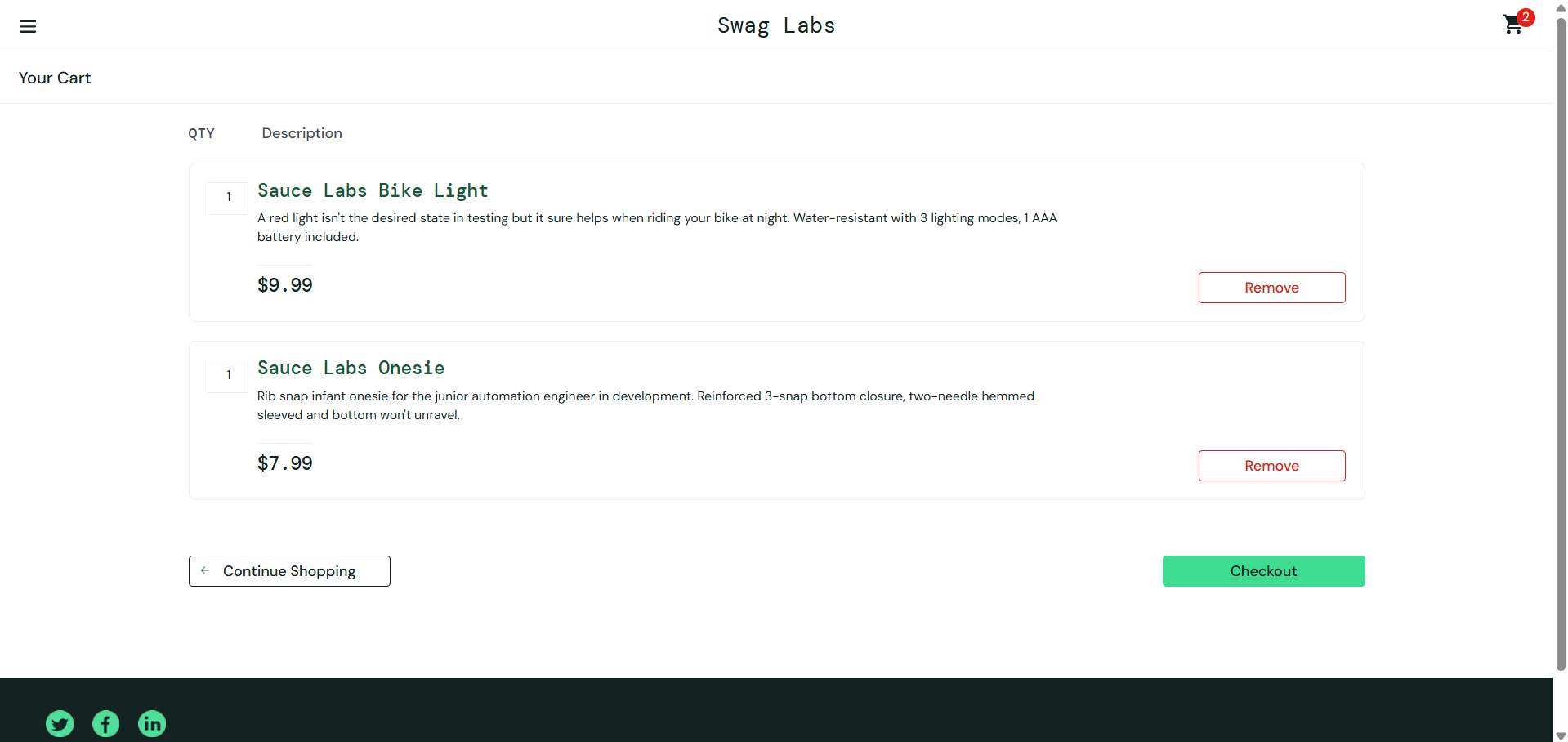
▲ Cart screen confirming 2 products were added correctly (TC-06)
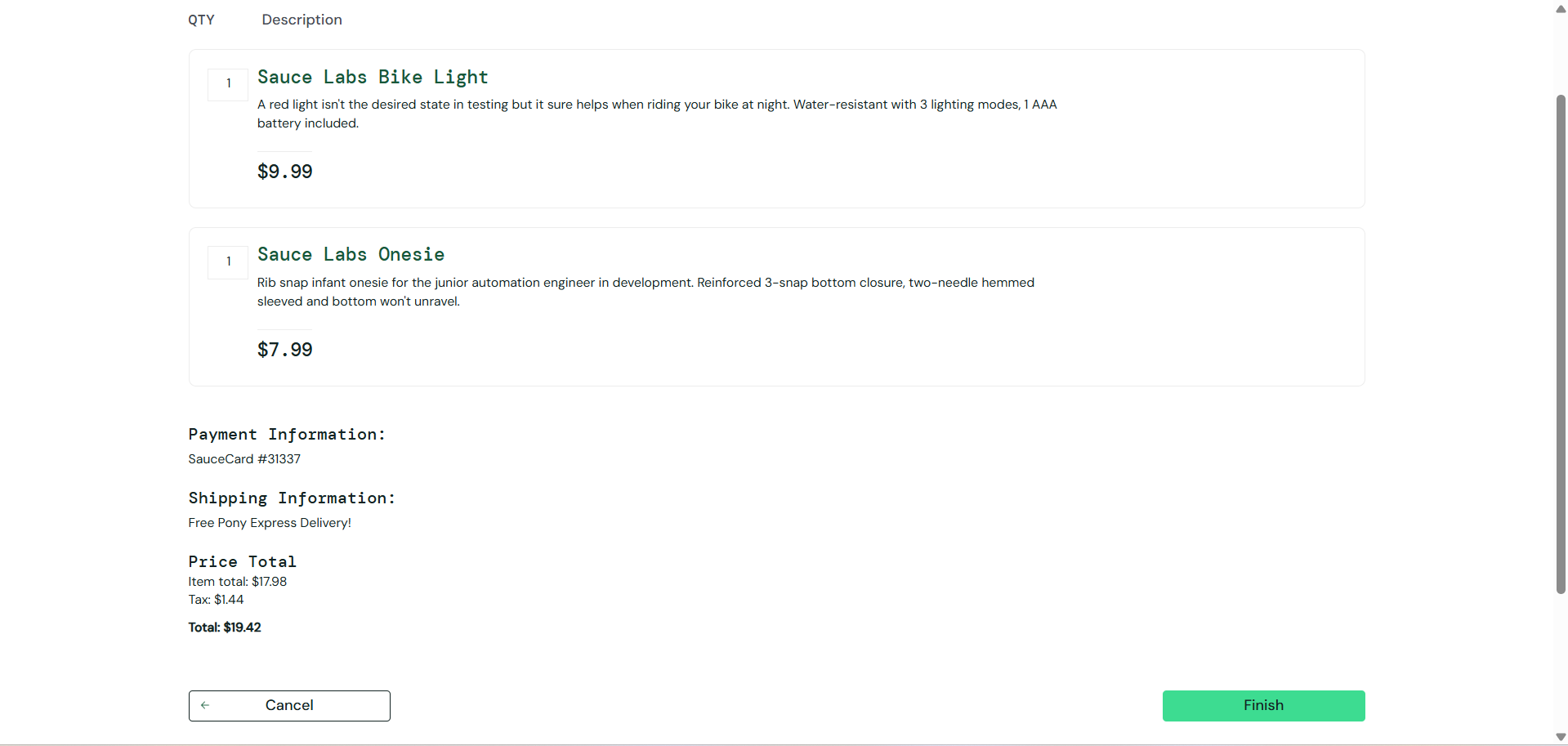
▲ Order summary screen — item count, subtotal, tax, and total are automatically verified (TC-08)
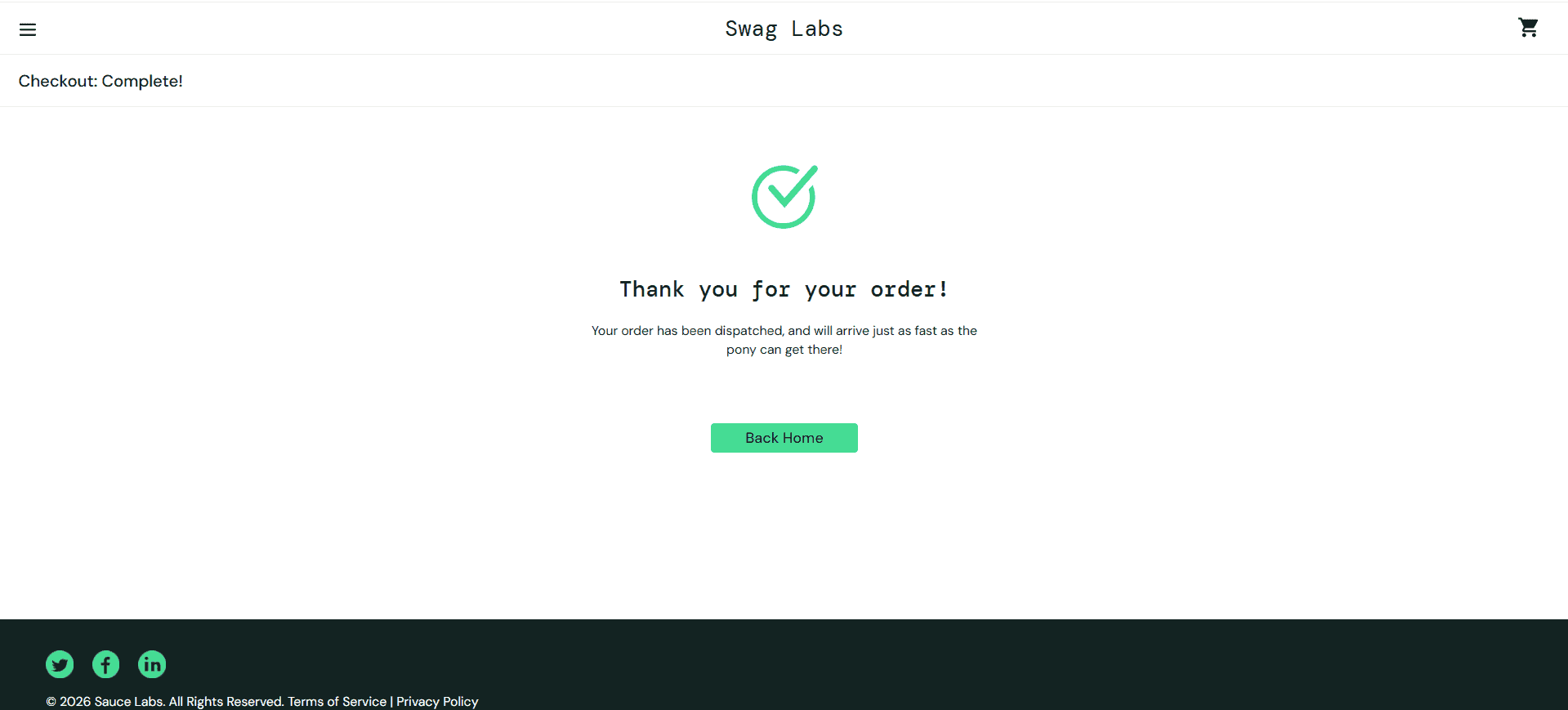
▲ “Thank you for your order!” confirms the order was completed successfully (TC-09)
Ideas to Take It Further
⚡ Parallel Execution with pytest
Combine with pytest-playwright for parallel test execution and easy parameterization.
📹 Video Recording
Playwright has built-in video recording. Just set record_video_dir to save the entire test run as a video file.
📊 Allure Reports
Combine with allure-pytest to auto-generate polished HTML reports with screenshots attached.
🤖 CI/CD Integration
Plug into GitHub Actions or Jenkins to automatically run E2E tests on every pull request as a quality gate.
💡 Use Cases & Extension Ideas
- Run as regression tests before every release
- Health check for the full purchase flow in staging environments
- Behavior comparison across multiple users (problem_user, performance_glitch_user)
- Use the video recording feature to save test runs as evidence
- Convert to pytest for parameterization and parallel execution
- Integrate with Slack Webhooks for instant failure notifications
Summary
In this article, we walked through how to automate a full E2E test suite for SauceDemo — from login to order completion — using Playwright and Python.
| Point | Detail |
|---|---|
| Test Cases | 2 negative tests + 8 main flow tests = 10 cases total |
| Waiting | wait_for_url for clean, reliable page navigation handling |
| Screenshots | Auto-saved for every case — filenames make it clear which screen is which |
| Summary Output | Results list manages all pass/fail outcomes and prints a clean summary |
| Execution Mode | headless / slow_mo options for local and CI/CD environments |
In real-world projects, this E2E test suite gets plugged into a CI/CD pipeline so the full purchase flow is automatically verified on every deployment. Playwright’s simpler syntax, built-in video recording, and slow_mo option make it a compelling upgrade from Selenium for modern QA workflows.
The full source code is available on GitHub — give it a try in your own environment!