📌 Who This Article Is For
- QA engineers who want to automate web form validation testing with Selenium
- Developers looking to run comprehensive login form validation checks
- Anyone who wants to learn test case design covering boundary values, special characters, and SQL injection
- Python developers interested in implementing E2E tests
✅ What You’ll Learn
- How to automatically run all 35 form validation test cases with Selenium
- Test case design patterns for full-width characters, ASCII, boundary values, and special characters
- How to automatically save screenshots only on FAIL cases
- How to export test results as CSV and JSON reports
👨💻 About the Author
Working as a QA engineer with hands-on experience using Selenium for automated testing. The script introduced in this article is published on GitHub and has been verified to work in a real environment.
The login form is one of the most critical features in any web application. When validation doesn’t work correctly, users can’t log in — and worse, it can open the door to serious security issues like SQL injection and unauthorized access. That’s why automating comprehensive testing before release is so important.
Testing a login form manually is surprisingly tedious. Full-width characters, empty strings, SQL injection, emojis — the list of things to check just keeps growing. In this article, we’ll walk through a Python script that automatically runs 35 login form validation test cases using Selenium. Results are exported as CSV and JSON, and screenshots are saved automatically on any FAIL.
Test Perspectives
This script covers the following test perspectives comprehensively. These are standard perspectives used in real QA workflows, so you can apply them directly to your own product’s test design.
- Empty input check: Does the server return an error when username/password are blank?
- Character type check: Are unexpected character types (full-width, Japanese, emoji) properly rejected?
- Format / whitespace check: Are incorrectly formatted inputs (email format, spaces) correctly refused?
- Boundary value check: Do edge cases like 1 or 255 characters cause unexpected behavior?
- Security check: Are attack strings like SQL injection and XSS neutralized?
- Successful login: Does a valid credential combination succeed and redirect correctly?
Test Cases (All 35)
The test cases are organized into 4 categories, with extra coverage for full-width characters and special characters — areas that are often overlooked in real-world QA.
| Category | ID | Count | Description |
|---|---|---|---|
| Full-width chars | Z-01 ~ Z-08 | 8 | Full-width letters, Japanese, Hiragana, Katakana, full-width symbols & spaces |
| ASCII / Half-width | H-01 ~ H-07 | 7 | Uppercase, lowercase, numeric-only, space included, email format |
| Length / Boundary | L-01 ~ L-10 | 10 | Empty string, 1 char, 2 chars, 3 chars, 50 chars, 255 chars |
| Special chars | S-01 ~ S-10 | 10 | SQL injection, XSS, emoji, newline, tab, URL-encoded strings |
⚠️ Hidden Trick: H-01 (valid login) intentionally has expected_error: True — a deliberately wrong expected value. This is a demo setup to trigger a FAIL and verify that screenshot saving works correctly. In real use, change it to False.
Setup & How to Run
Install Required Libraries
Just install these two libraries and you’re ready. No manual ChromeDriver management needed.
pip install selenium webdriver-managerRun Commands
# Run with browser visible (default)
python form_validation_test.py

# Headless mode (no browser window — great for CI)
python form_validation_test.py --headless
💡 Tip: On the first run, webdriver-manager will automatically download ChromeDriver. Subsequent runs use the cache, so they’re much faster.
Sample Output
Results stream to the terminal in real time. For FAIL cases, the reason and screenshot path are displayed together.
==============================================================
  Selenium Form Validation Test (headless)
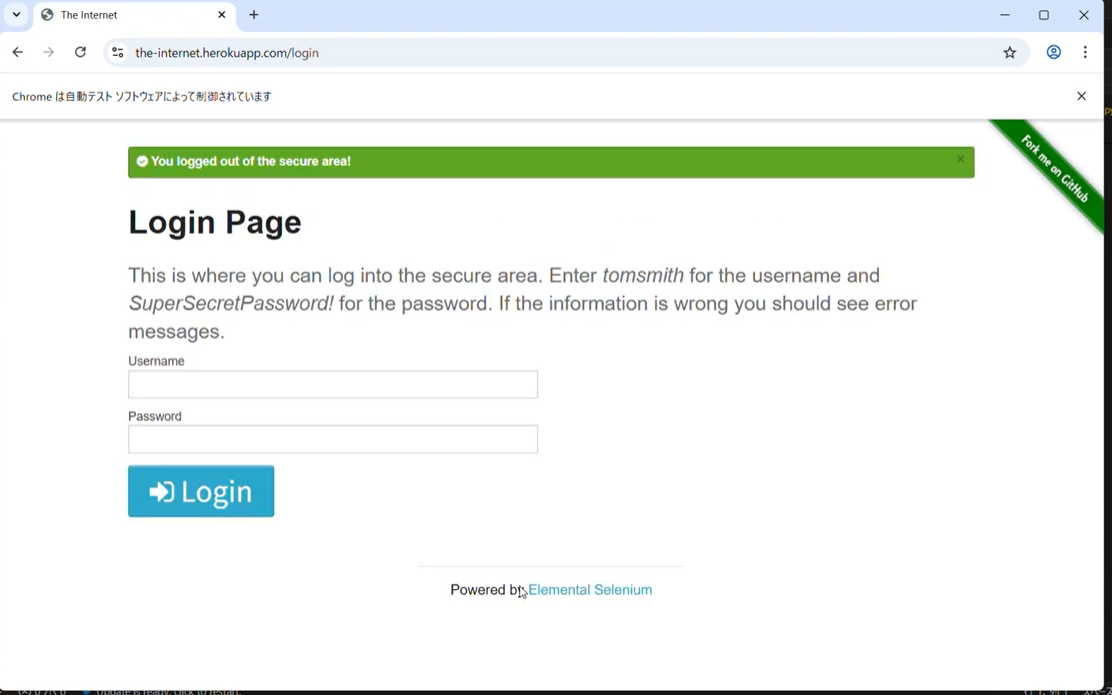
  Target : //the-internet.herokuapp.com/login
  Cases  : 35
  Start  : 2025-07-01 10:00:00
==============================================================
  (01/35) Full-width alpha username      ... ✅ PASS (1823ms)
  (02/35) Full-width numeric password    ... ✅ PASS (1654ms)
  (03/35) Full-width space in username   ... ✅ PASS (1701ms)
  ...
  (09/35) Valid login (correct creds)    ... ❌ FAIL (2100ms)
       → expected_error:True / actual_error:False
       📸 screenshots/H-01_FAIL.png
  ...
  (35/35) URL-encoded characters         ... ✅ PASS (1590ms)

──────────────────────────────────────────────────────────────
  Test Summary
──────────────────────────────────────────────────────────────
  Total  : 35
  ✅ PASS  : 34
  ❌ FAIL  : 1
  ⚠️  ERROR : 0
  Rate   : 97.1%
──────────────────────────────────────────────────────────────
Code Walkthrough: 3 Key Points
① Injecting Values via JavaScript
Selenium’s send_keys() can fail to correctly input special characters like newlines (\n) or tabs (\t). By setting values directly via JavaScript, you can safely input any character.
arguments[0] takes the WebElement and arguments[1] takes the string to input. This bypasses browser key event processing and writes directly to the DOM element. Characters that tend to break with send_keys() — emoji, full-width characters, control characters — all work reliably this way. Test cases S-05 (newline) and S-06 (tab) only work because of this approach.
driver.execute_script("arguments[0].value = arguments[1];", u_elem, tc["username"])
driver.execute_script("arguments[0].value = arguments[1];", p_elem, tc["password"])
② Bypassing HTML5 Validation
Empty string tests (L-01 ~ L-03) would normally be blocked by the browser due to the HTML5 required attribute. Adding novalidate lets the request reach the server so you can verify server-side behavior.
The real goal of validation testing isn’t “did the browser show an error?” — it’s “does the server correctly return an error?” By intentionally disabling front-end validation, you can directly test the robustness of your back end.
driver.execute_script(
    "document.querySelector('form').setAttribute('novalidate','true');"
)
③ Saving Screenshots Only on FAIL
Taking screenshots for every test case creates an overwhelming number of files. Saving only on FAIL keeps things clean and makes it much easier to investigate issues later.
Files are named {testID}_FAIL.png, so you can tell exactly which test case failed just from the filename. When running in CI/CD environments like GitHub Actions, saving these screenshots as artifacts dramatically speeds up debugging.
if r.status == "FAIL":
    os.makedirs("screenshots", exist_ok=True)
    ss = f"screenshots/{tc['id']}_FAIL.png"
    driver.save_screenshot(ss)
    r.screenshot = ss
💡 Pro Tip: Page Object Model (POM)
In professional settings, the Page Object Model (POM) is recommended to separate test logic from page interactions. This script is intentionally simple, but as test cases grow, wrapping form operations into a LoginPage class will greatly improve maintainability and reusability.
Auto-Export Reports as CSV & JSON
After the tests finish, timestamped report files are generated automatically.
📄 report_20250701_100000.csv
📄 report_20250701_100000.json| Format | Use Case |
|---|---|
| CSV | Open in Excel for review, filtering, team sharing, and evidence submission |
| JSON | GitHub Actions integration, Slack notifications, Allure report data pipeline |
Ideas to Take It Further
⚡ Parallel Execution
Use concurrent.futures to spin up multiple browsers and run tests in parallel, dramatically cutting execution time.
🔄 Add Retry Logic
Add automatic retry logic for ERROR cases to keep tests stable in flaky network environments.
📊 Visualize Reports
Generate Allure or HTML reports from the JSON output to make sharing results with your team much smoother.
🤖 CI/CD Integration
Plug into GitHub Actions or Jenkins to automatically run tests on every pull request.
💡 Use Cases & Extension Ideas
- Run as part of regression testing before every release
- Health check for login functionality before new feature releases
- Security verification in staging environments (SQLi · XSS)
- Extend to registration forms, password change forms, and more
- Load test cases from CSV for a no-code test management approach
- Combine with pytest-html or Allure for visual reporting
Pitfalls & Lessons Learned
Here are the key issues I encountered during implementation. I hope this helps others who run into the same problems.
① Special Characters Are Not Entered Correctly with send_keys()
When entering special characters such as newlines (\n), tabs (\t), or emojis using send_keys(), the text sometimes got garbled or caused unexpected behavior. The solution was to write values directly to the DOM via JavaScript.
# ❌ send_keys() may garble special characters
username_field.send_keys("test\nuser")

# ✅ Use JS to set the value directly
driver.execute_script("arguments[0].value = arguments[1];", username_field, "test\nuser")
💡 Key Takeaway: Pass the WebElement as arguments[0] and the input string as arguments[1]. This bypasses the browser’s key event processing and reliably writes the value directly.
② Browser Blocks Submission Due to HTML5 required Attribute
When attempting to run empty string tests, the form’s required attribute caused the browser to block the request before it reached the server, making it impossible to verify server-side behavior.
# ❌ required attribute blocks the request at the browser level
submit_button.click()

# ✅ Add novalidate to bypass HTML5 validation
driver.execute_script(
    "document.querySelector('form').setAttribute('novalidate', 'true');"
)
submit_button.click()
💡 Key Takeaway: The true purpose of validation testing is not just “the browser shows no error” but “does the server correctly return an error?” Always test server-side behavior directly.
③ Taking Screenshots for All Cases Created Too Many Files
Initially I captured screenshots for all 35 cases, which generated a huge number of files and made it hard to identify what was important. Switching to a design that only saves screenshots on FAIL made management much easier.
# ❌ Saving all cases creates too many files
driver.save_screenshot(f"screenshots/{tc['id']}.png")

# ✅ Only save on FAIL
if result.status == "FAIL":
    os.makedirs("screenshots", exist_ok=True)
    driver.save_screenshot(f"screenshots/{tc['id']}_FAIL.png")
💡 Key Takeaway: Using the format {testID}_FAIL.png lets you identify which test case failed just by looking at the filename.
④ A Wrong Expected Value Caused Continuous FAIL Results
I had mistakenly set expected_error: True on the valid login test case (H-01), which meant the test kept showing FAIL even though login was succeeding correctly. Mistakes in expected values are easy to overlook during debugging.
# ❌ Wrong expected value causes FAIL even on correct behavior
{"id": "H-01", "username": "tomsmith", "password": "SuperSecretPassword!", "expected_error": True}

# ✅ Correct: expected_error should be False for a valid login
{"id": "H-01", "username": "tomsmith", "password": "SuperSecretPassword!", "expected_error": False}
⚠️ Note: When a test fails, always first determine whether it is a “code bug” or an “expected value mistake” before diving into debugging.
⑤ Retrieving Error Messages Too Soon After Submission
Immediately after submitting the form, the page had not yet updated, so trying to retrieve the error message resulted in the element not being found. A wait after submission was necessary.
# ❌ Grabbing the error right after submit may fail
submit_button.click()
error = driver.find_element(By.ID, "flash")

# ✅ Use WebDriverWait to wait until the element appears
from selenium.webdriver.support.ui import WebDriverWait
from selenium.webdriver.support import expected_conditions as EC

submit_button.click()
error = WebDriverWait(driver, 10).until(
    EC.presence_of_element_located((By.ID, "flash"))
)
💡 Key Takeaway: Conditional waits with WebDriverWait are faster and more stable than fixed waits with time.sleep().
Summary
In this article, we walked through how to automate login form validation testing with Selenium and Python.
| Point | Detail |
|---|---|
| Test Cases | 4 categories covering full-width, ASCII, boundary values, and special characters — 35 cases total |
| Input Method | JavaScript injection for reliable input of any character type |
| Screenshots | Auto-saved only on FAIL — keeps things manageable |
| Reports | CSV & JSON with timestamps, auto-generated after every run |
| Execution Mode | --headless option for CI/CD compatibility |
In real-world practice, these tests are integrated into a CI/CD pipeline and run automatically on every pull request, enabling continuous quality verification. Selenium tests are widely used for regression testing — ensuring the login flow works correctly on every deployment.
The full source code is available on GitHub. Give it a try in your own environment! By swapping out the target form, you can apply this to virtually any web application. Feel free to leave questions in the comments below 👇